
Introduction
Version control is the foundation of modern software development, and learning Git is necessary if you want to develop anything today. No matter if you’re managing changes in code, collaborating with international teams, or fixing bugs, Git allows you to do all of this with full confidence and accuracy.
In this complete Git tutorial for beginners, we’ll cover everything you need to know about the most important Git skills, workflows, and best practices that will help you make Git your ultimate advantage. Get ready to jump-start your developer career. Sign up for our Complete Git Course in Chennai now and learn all the tricks you need!
1. Fundamentals: What is Git and How Does Version Control Work?
Before executing any command, it is important to know how Git works internally. Git is an example of a DVCS system. As opposed to a centralized version control system (SVN or Perforce, for example), on each developer’s computer, there is a full copy of the repository and its history.
Git’s Three Main States
Git tracks files across three primary local zones:
- Working Directory: The local file system where you edit files directly.
- Staging Area (Index): A draft space where you collect changes ready to be saved into the next commit snapshot.
- Local Repository (.git directory): The permanent database containing all committed snapshots.
[Working Directory] → (git add) → [Staging Area] → (git commit) → [Local Repository]
2. Setting Up and Configuring Your Git Environment
Before using Git, first install the command-line interface (CLI) on your computer, depending on your operating system. Your identity is then configured.
Initial Configuration
Configure your global user name and email. Git will add your details to all your commits:
# Set global identity
git config –global user.name “SLA”
git config –global user.email “your.email@example.com”
# Set default initial branch name to main
git config –global init.defaultBranch main
# Set default text editor (e.g., VS Code or Vim)
git config –global core.editor “code –wait”
# Enable colorful terminal output
git config –global color.ui auto
# Verify settings
git config –list
Starting a Repository
You can initialize a brand-new repository or clone an existing remote repository:
# Option A: Initialize a new repository locally
mkdir my-project
cd my-project
git init
# Option B: Clone an existing remote repository
git clone https://github.com/username/repository-name.git
3. Basic Everyday Git Commands: The Core Snapshot Workflow
The primary loop of Git is based on editing, staging the edits, and committing snapshots.
Basic Workflow Commands
# Check the current status of files (tracked, untracked, modified, staged)
git status
# Stage specific files
git add index.html style.css
# Stage all modified and new files in the current folder
git add .
# Save staged changes with a descriptive commit message
git commit -m “feat: add responsive navigation bar”
# View commit history
git log –oneline –graph –all
Inspecting Changes
# View changes in Working Directory that are NOT yet staged
git diff
# View changes that ARE staged for the next commit
git diff –staged
# View changes between two specific commits
git diff commit_hash_1 commit_hash_2
4. Branching and Merging: Parallel Development Strategies
Branching helps you keep your development features, fixes, or experimental code separate from your production codebase (main/master).
Branch Operations Cheat Sheet
| Command | Action |
| git branch | List all local branches |
| git branch <branch-name> | Create a new branch |
| git switch <branch-name> | Switch to an existing branch |
| git switch -c <branch-name> | Create and switch to a new branch immediately |
| git branch -d <branch-name> | Delete a merged branch |
| git branch -D <branch-name> | Force delete an unmerged branch |
Merging Strategies: Fast-Forward vs. 3-Way Merge
# Switch to the target branch (e.g., main)
git switch main
# Merge feature-login into main
git merge feature-login
- Fast Forward Merge: In case there are no new commits in main since feature-login was created, then Git simply fast-forwards the main branch to match feature-login.
- 3 Way Merge (Recursive): In case both main and feature-login have advanced on their own, then Git merges the head of both branches along with their common base to make a Merge Commit.
5. Resolving Merge Conflicts Step-by-Step
A conflict happens whenever Git is unable to resolve differences between two commits on the same line of a file.
How Conflict Markers Look
In case a conflict arises during the merge process, Git makes the necessary changes to the conflicting file:
<<<<<<< HEAD
<h1>Welcome to Our Enterprise Portal</h1>
=======
<h1>Welcome to Our Updated Client Portal</h1>
>>>>>>> feature-header-update
- <<<<<<< HEAD: Shows code in your current target branch.
- =======: Separates the opposing changes.
- >>>>>>> branch-name: Shows code coming from the branch being merged.
Resolving the Conflict
- Open the conflicting files in your editor.
- Manually edit the code to keep the desired logic and remove the markers (<<<<<<<, =======, >>>>>>>).
- Save the files.
- Stage and commit the resolved changes:
# Mark conflicts as resolved by staging
git add index.html
# Finalize the merge commit
git commit -m “fix: resolve merge conflict in index.html”
6. Remote Collaboration: Working with GitHub, GitLab, and Bitbucket
Remote repositories host your project on the cloud or private servers, allowing team synchronization.
Connecting and Synchronizing
# View configured remotes
git remote -v
# Link a local repository to a remote server
git remote add origin https://github.com/username/project.git
# Push changes to remote repository for the first time
git push -u origin main
# Download updates from remote without modifying local files
git fetch origin
# Download updates AND automatically merge into current local branch
git pull origin main
7. Professional Workflows: Git Flow vs. Feature Branch Workflow
Choosing the right strategy ensures clean delivery and minimizes conflicts in team settings.
Feature Branch Workflow (GitHub Flow)
Ideal for web apps and Continuous Deployment (CD) environments:
- main is always deployable.
- Every new task gets its own descriptive feature branch (feature/user-auth, fix/nav-bug).
- Changes are reviewed via Pull Requests (PRs) before merging into main.
Git Flow Strategy
Suited for enterprise software with scheduled release cycles:
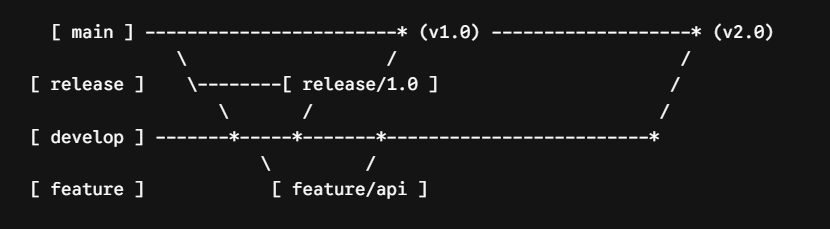
- main: Contains production-ready releases.
- develop: Acts as an integration branch for features.
- feature/*: Isolated work branched off develop.
- release/*: Preparation branch for upcoming production releases.
- hotfix/*: Emergency fixes branched directly off main.
8. Undo, Revert, and Clean: Handling Mistakes safely
Even experienced developers make mistakes. Git provides mechanisms to fix almost any error.
# 1. Unstage a file (keep local edits)
git restore –staged index.html
# 2. Discard local uncommitted edits (revert file to last commit)
git restore index.html
# 3. Amend the most recent commit (change message or add forgotten files)
git add forgotten-file.js
git commit –amend -m “feat: complete login and add forgotten configuration file”
# 4. Safely undo a commit by adding a NEW inverse commit (Best for shared remote branches)
git revert <commit_hash>
# 5. Reset local history (DANGER: Use reset with caution on local branches only)
git reset –soft HEAD~1 # Undoes commit, keeps changes staged
git reset –mixed HEAD~1 # Undoes commit, keeps changes in Working Directory (Default)
git reset –hard HEAD~1 # UNDOES COMMIT AND DELETES ALL LOCAL WORK
9. Advanced Git Features: Stashing, Cherry-Picking, and Interactive Rebase
1. Git Stash: Temporarily Shelving Changes
In case you must switch branches immediately without committing your changes:
# Save modified working state to a temporary stack
git stash save “WIP: navbar styling incomplete”
# List all stashed changes
git stash list
# Re-apply the latest stashed changes and remove them from stash stack
git stash pop
# Clear all stashes
git stash clear
2. Git Cherry-Pick: Applying Specific Commits
Copy a single commit from another branch into your active branch:
# Switch to target branch
git switch main
# Apply specific commit by its hash
git cherry-pick a1b2c3d
Gain expertise in various IT skills with our wide range of software training courses.
3. Git Interactive Rebase: Cleaning History
Clean up messy local commit history before creating a pull request:
# Rebase the last 4 commits interactively
git rebase -i HEAD~4
An editor window will open listing the commits:
pick e4a5b6c feat: start user profile page
squash f7g8h9i fix: fix typo in profile layout
squash j0k1l2m refactor: cleanup CSS formatting
pick m3n4o5p test: add unit tests for user profile
- pick: Keeps the commit as is.
- squash (or s): Melds the commit into the previous commit above it.
- reword (or r): Keeps the commit but modifies the commit message.
Save and exit to execute the rebase and combine scattered commits into a clean logical sequence.
Popular Git Commands:
Everyday Commands:
- git status
- git add .
- git commit -m “”
- git push origin <branch>
Cleanup & Recovery Commands:
- git restore <file>
- git revert <hash>
- git stash / git stash pop
- git rebase -i HEAD~N
This understanding of the basics of Git will form a great foundation for future management of your code in a safe manner and efficient collaboration among team members.
Conclusion
Proficiency in Git is no longer a choice but a definite requirement for developing scalable applications and working in modern engineering teams without any hitches. Using the various workflows, branches, and recovery mechanisms covered in this tutorial, you will get full command over your code and increase your efficiency level.
Are you ready to convert these basics into advanced knowledge for corporate organizations? Come join our premier software training institute in Chennai. Register for our Git & DevOps courses today!