
Introduction
Awaken your potential and dominate the mobile universe through the skill of developing native Android apps! In light of the billions of active devices worldwide, mobile application development is the best mechanism to propel your career forward. This tutorial holds the master key that will help you turn into a mobile app developer, should you be ready to leap. Get ready to craft efficient Kotlin code and create an attractive user interface using Jetpack Compose, as well as utilize the built-in AI capabilities of the device. Get your copy of our Android Development Course Syllabus right here!
Android App Developer Tutorial for Beginners
With every tap of your phone, you use sophisticated software that is meant to function perfectly in the palm of your hand. Android operates over 70 percent of all smartphones globally and is the most widespread mobile operating system across the globe. As an amateur developer, learning to develop Android applications is not only interesting but also a very efficient way to start building software that will be instantly available to billions of people.
Initially, to develop an application using Android, one had to write very lengthy and complicated Java code. Now, Kotlin has officially become the first-class language used for developing applications in Android. Along with the help of Jetpack Compose, Android’s newest library for designing user interfaces, developing mobile applications is now easier than ever.
The Android Ecosystem Architecture
Before delving into the code, one should first familiarize oneself with the basic elements of the Android app. Do not look at the app as one big continuous program; rather, view it as a series of components that communicate with one another and with the OS.
The 4 Basic Application Components:
All Android apps use the following four core components:
| Component | Core Responsibility | Real-World Example |
| Activity | The entry point for interacting with the user represents a single screen with a user interface. | The screen you see when viewing your email inbox. |
| Service | A background worker that runs long-running operations without a user interface. | Spotify streams music in the background while you browse Instagram. |
| Broadcast Receiver | A listener component that allows your app to respond to system-wide broadcast announcements. | An app detects that the device battery is low and turns off location sync. |
| Content Provider | A secure database bridge that manages and shares data between different applications. | WhatsApp is requesting access to your phone’s native Contacts app list. |
The Tools of the Trade
To create professional applications, you will be working in Android Studio, which is the official IDE developed by Google for creating Android applications. The IDE has everything that you will need, such as a code editor, a visual layout viewer, a device emulator, and performance profilers.
2. Building Your First Modern Android Screen
The modern way of constructing user interface screens in Android apps is by means of Jetpack Compose. Earlier, the screen design involved writing layouts in split XML documents and linking them to Java code. But now with Jetpack Compose, you can simply use Composable functions in Kotlin to create your UI screen.
Layout Trinity: Column, Row, and Box
While creating a layout design, you need to position your structural pieces within three different layout compositions:
- Column: Aligns all its children vertically (one after another).
- Row: Aligns all its children horizontally (in a side-by-side alignment).
- Box: Stacks all its children on top of one another (helpful in placing background graphics or badges).
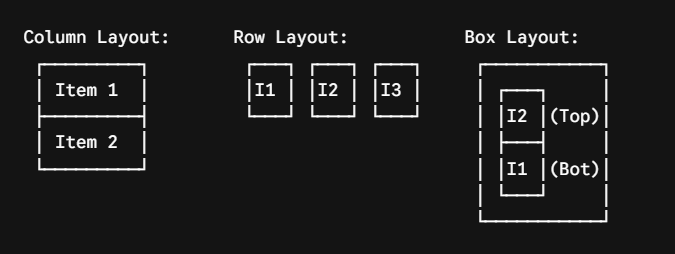
Here’s how one Composable function creates a nice profile header block:
import androidx.compose.foundation.layout.Column
import androidx.compose.foundation.layout.Row
import androidx.compose.foundation.layout.padding
import androidx.compose.material3.Text
import androidx.compose.runtime.Composable
import androidx.compose.ui.Modifier
import androidx.compose.ui.text.font.FontWeight
import androidx.compose.ui.unit.dp
import androidx.compose.ui.unit.sp
@Composable
def UserProfileHeader(username: String, profession: String) {
// Column arranges text blocks vertically with 16 density-independent pixels (dp) of padding
Column(modifier = Modifier.padding(16.dp)) {
Text(
text = “Welcome back,”,
fontSize = 14.sp,
fontWeight = FontWeight.Light
)
Text(
text = username,
fontSize = 24.sp,
fontWeight = FontWeight.Bold
)
Text(
text = profession,
fontSize = 16.sp,
fontWeight = FontWeight.Medium
)
}
}
Fine-tune your skills with our Android App Developer Challenges and Solutions.
3. State Management: The Key to Interactive Applications
Static screen – not what we need. To create a working application that responds to clicks on buttons, enters text, or downloads data, you should be able to work with the concept of State. In the Compose library, each time your data state changes, the interface executes a procedure called recomposition and draws a new screen with new data.
The remember and mutableStateOf Hooks
Since Composable functions execute frequently, we need to inform our system (Excel, or in our case Android), to remember this value through several rounds of redrawing. This we do with remember { mutableStateOf(value) }, thus fixing our reactive variable.
Here’s a functional block of code for an interactive tap-counting counter component:
import androidx.compose.foundation.layout.Arrangement
import androidx.compose.foundation.layout.Column
import androidx.compose.foundation.layout.fillMaxSize
import androidx.compose.foundation.layout.padding
import androidx.compose.material3.Button
import androidx.compose.material3.Text
import androidx.compose.runtime.Composable
import androidx.compose.runtime.getValue
import androidx.compose.runtime.mutableStateOf
import androidx.compose.runtime.remember
import androidx.compose.runtime.setValue
import androidx.compose.ui.Alignment
import androidx.compose.ui.Modifier
import androidx.compose.ui.unit.dp
import androidx.compose.ui.unit.sp
@Composable
def TapCounterApp() {
// Define a mutable state variable initialized to 0
var tapCount by remember { mutableStateOf(0) }
Column(
modifier = Modifier
.fillMaxSize()
.padding(24.dp),
verticalArrangement = Arrangement.Center,
horizontalAlignment = Alignment.CenterHorizontally
) {
Text(
text = “Total Taps: $tapCount”,
fontSize = 32.sp,
modifier = Modifier.padding(bottom = 16.dp)
)
// When clicked, tapCount increments, triggering automatic UI update
Button(onClick = { tapCount++ }) {
Text(text = “Tap Me!”, fontSize = 18.sp)
}
}
}
4. Architectural Best Practices: MVVM Design Pattern
However, when creating professional applications, coding all of your business logic straight into your UI elements will give you an unreadable and untestable source code. MVVM (Model-View-ViewModel) is the default architecture pattern used in Android development.

- Model: Stores your raw data objects, Room database locally, or connects to network API layers.
- View: Jetpack Compose user interface. Only shows the information that the ViewModel tells it to and forwards user clicks up.
- ViewModel: The heart of the screen. Manages the screen state variable data and does calculations. This ensures that the data is not lost when the user turns the device screen.
5. Getting and Showing Data Dynamically
Almost all applications in the real world need to interact with some external server for downloading data (i.e., get the products of an ecommerce shop or show articles). For this, Android provides you with Coroutines for asynchronous (background) programming to do this without freezing your user interface.
The engineering illustration below depicts how an Android app gets dynamic data from the external repository layer and manages UI states differently:
// Simulated Model Data Class
data class SpiceProduct(val id: String, val name: String, val price: Double)
// Simulated ViewModel Layer handling asynchronous data streaming
class ProductViewModel {
// Simulates an API call executing safely on a background thread
fun fetchProductsFromCloud(onResult: (List<SpiceProduct>) -> Unit) {
println(“[THREAD LOG] Fetching data on background worker thread…”)
// Simulating network latency delay safely
Thread.sleep(1500)
val dummyNetworkData = listOf(
SpiceProduct(“SP001”, “Premium Black Pepper”, 14.99),
SpiceProduct(“SP002”, “Organic Turmeric Powder”, 9.50),
SpiceProduct(“SP003”, “Cardamom Pods Whole”, 24.00)
)
// Return data safely back to the main user interface engine
onResult(dummyNetworkData)
}
}
// Client application test runner simulating the runtime environment
fun main() {
println(“=== STARTING ANDROID APPLICATION RUNTIME ===”)
val viewModel = ProductViewModel()
println(“[UI STATE] Rendering Shimmer Loading Skeleton…”)
viewModel.fetchProductsFromCloud { productList ->
println(“[UI STATE] Data Arrived! Dismissing Loading State.”)
println(“— Rendered Product Inventory List —“)
for (product in productList) {
println(“Displaying Card -> ${product.name} | Price: $${product.price}”)
}
}
println(“=== APP ARCHITECTURE EXECUTION SUCCESSFUL ===”)
}
Explore various Android App Project Ideas for Beginners.
6. The Standard Android Release Pipeline
For your app to be moved from the initial coding in Android Studio to a live consumer smartphone or even on the Google Play Store, it needs to go through an optimized pipeline:
[ Kotlin & Compose Source Code ] │ ▼ [ Android Gradle Compiler Build ] ──► (Assembles code, compiles resources, executes minification) │ ▼ [ Keystore Security Signing ] ──► (Applies digital developer signature cryptography) │ ▼ [ AAB / APK Asset Generation ] ──► (Produces highly optimized deployment bundles) │ ▼ [ Play Console Distribution ] ──► (Runs automated safety checks, publishes to the public store)
With the use of clean, decoupled architecture, Jetpack Compose for declarative programming, and separation of background tasks using good lifecycle architecture, there is absolutely no chance of UI lag, cross-device support, and clean mobile architecture.
Recommended: Android App Course in Chennai.
Conclusion
Now that you know how the primary parts of the Android world interact with each other and have gained some knowledge of building up-to-date and interactive UIs using Jetpack Compose, you are ready to start implementing your innovative ideas into your own functional mobile apps.
Just remember, being a good developer is not about knowing all lines of code by heart but about learning problem-solving and creating software with the final user in mind. Each major application on your phone began in the same way – from a single screen, a small piece of code, and a developer willing to learn something new.
Ready to Build Apps like a Pro and Enter the Rapidly Growing IT Industry? Enroll in our IT training institute in Chennai for the best Android App Development Certification Course!